Component Anatomy
The TimePicker consists of several interactive parts. Understanding its structure will help you customize and style it effectively. Below you can see the light and dark versions of the component with each section labeled.
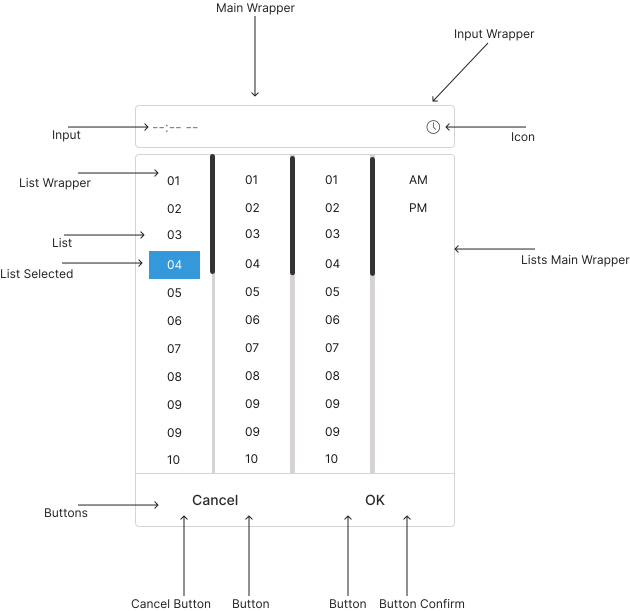
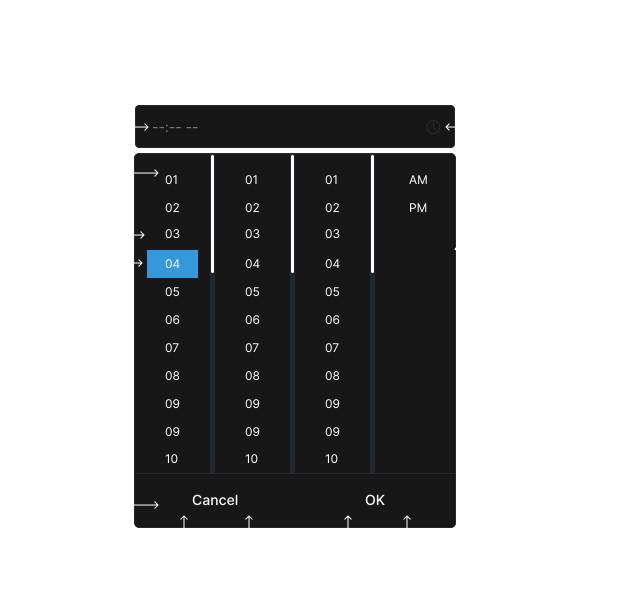
Parts of the TimePicker
| # | Part | Description |
|---|---|---|
| 1 | Input Field | Displays the currently selected time. Users can type directly or open the picker by clicking. |
| 2 | Clock/Picker Panel | Dropdown area where users pick the hour and minute (and optionally seconds). |
| 3 | Hour Selector | Allows selecting the hour value. |
| 4 | Minute Selector | Allows selecting the minute value. |
| 5 | AM/PM Toggle (optional) | Toggles between AM and PM when using 12h format. |
| 6 | Confirm / Done Button | Applies the chosen time and closes the picker. |
| 7 | Clear / Reset Button | Resets or clears the current time selection. |
| 8 | Icons / Indicators | Visual cues for opening/closing the picker or indicating state. |
| 9 | Focus Ring / Highlight | Shows which part of the picker is currently focused for keyboard navigation. |
How to Use This Anatomy
Each labeled part corresponds to a customizable part of the component. Use the Props page to see which props configure each section, and see the Styling page to learn how to customize colors, sizes, and spacing.
Next Steps
Ready to implement TimePicker in your application? Explore these resources to get started: